
Adding files, images, and attachments
Attachments give Fennec explicit input without requiring you to paste large files into the composer.
On this page2
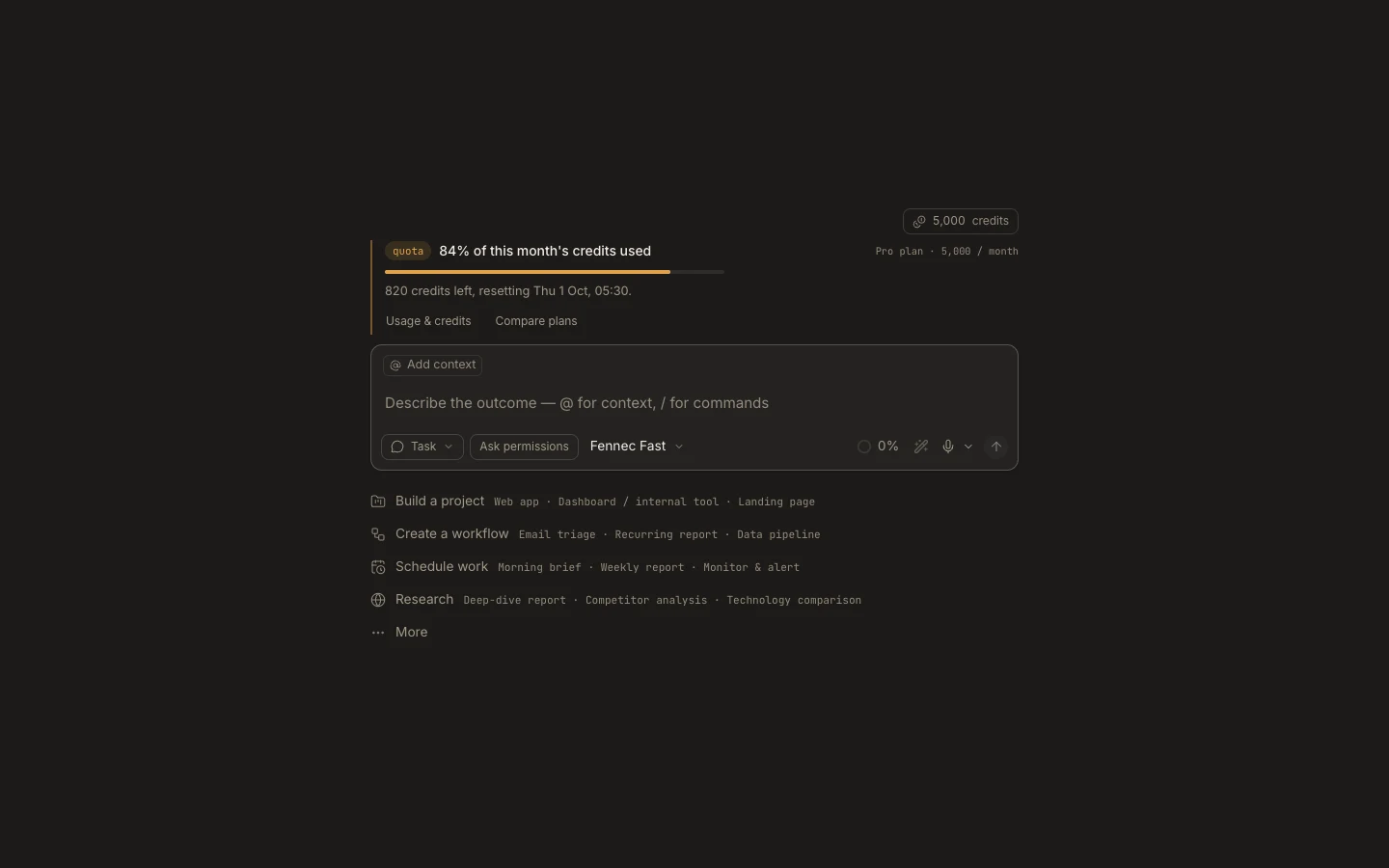
Steps
- Select Add context in the composer, then choose Add files or photos.
- Choose the relevant files; on Desktop you can also attach a project folder from this menu.
- Crop or trim supported image and video previews when only part of the media matters.
- Add a request that says how each attachment should be used, then send.
Expected result
The attachment chips appear with the request and remain part of that task’s context and transcript.
Note: Attachment-only turns are supported, but a short instruction usually makes the intended result easier to verify.