
Add a project or file
Give Foxora only the folder, file, image, or browser tab needed for the task.
Context tells Foxora what it may inspect. Add only what the task needs.
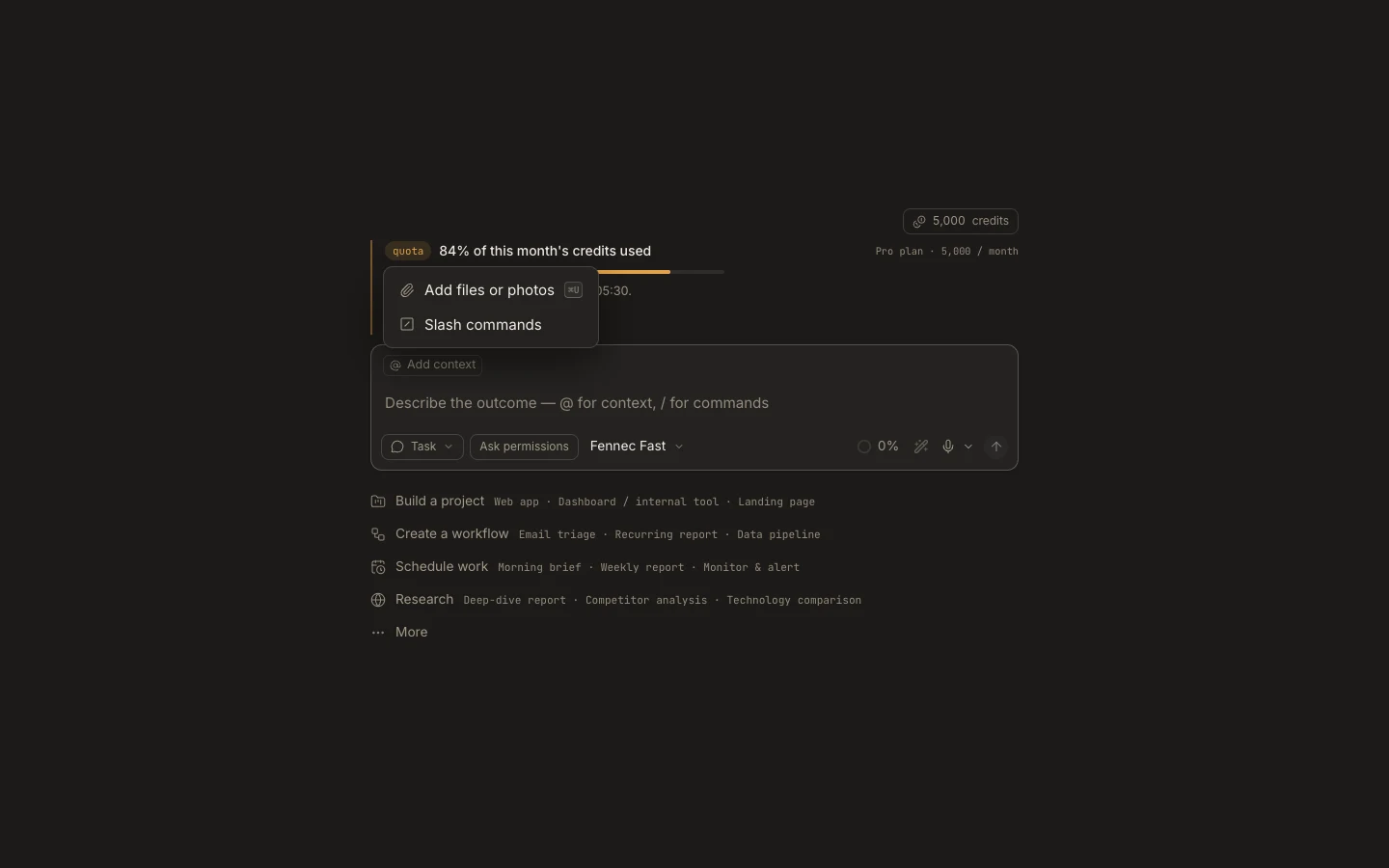
Add a project
- Open
Newand selectAttach projectorAdd context. - Choose an existing folder, Git repository, or Foxora project.
- Confirm the displayed path before sending the task.
- Ask Foxora to inspect the project first when you do not yet want edits.
Add a file, image, or tab
Use the paperclip or Add context, choose the item, and confirm its name appears in the composer. Say what Foxora should look for.
Tip: A local project stays on the device unless a task or connected service explicitly sends data elsewhere.
You are done when
The context chip shows the correct item and the task response refers to that same project, file, image, or browser tab.