
Troubleshoot schedules
Diagnose the trigger, workflow, connection, and run separately. A visible schedule does not prove its last execution succeeded.
On this page2
Find the failed layer
- Open
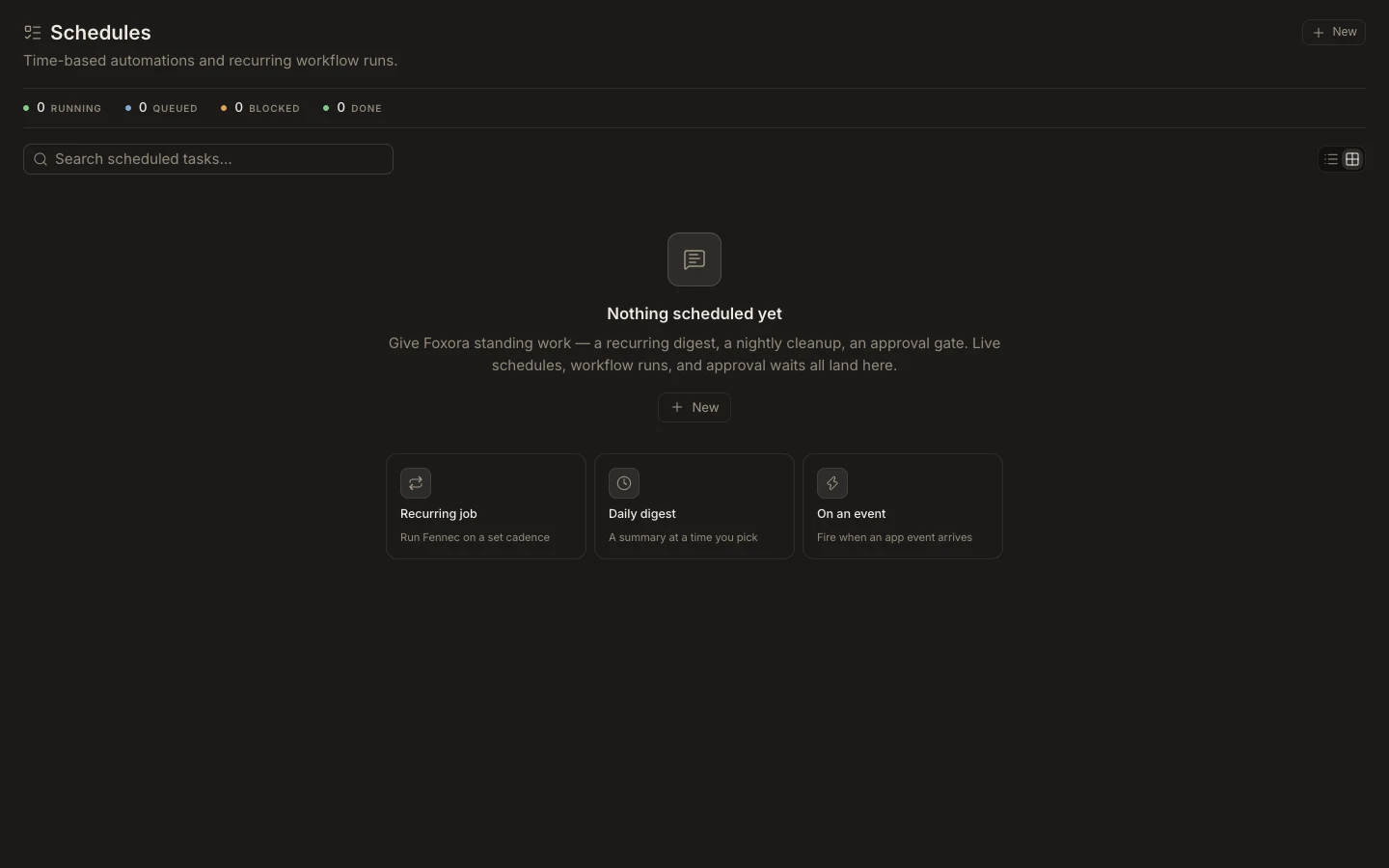
Schedulesand check whether the item is active, queued, blocked, or stale. - Select
Viewand review the trigger, time zone, required plugins, approvals, and workflow health. - Open
Runs, switch toHistory, and expand the failed execution. - Reconnect the owning plugin or fix the exact input, permission, or policy error.
- Test manually before resuming the schedule.
Expected result
One manual run completes and the next scheduled time is correct. If Studio says live schedules are unavailable, treat the displayed rows as cached until refresh succeeds; do not delete and recreate the automation merely to clear a temporary status error.