
Updating Foxora
Foxora Desktop checks for signed updates and lets you install them without replacing your project folders.
On this page2
Steps
- Save open editor buffers and note any long-running terminal process.
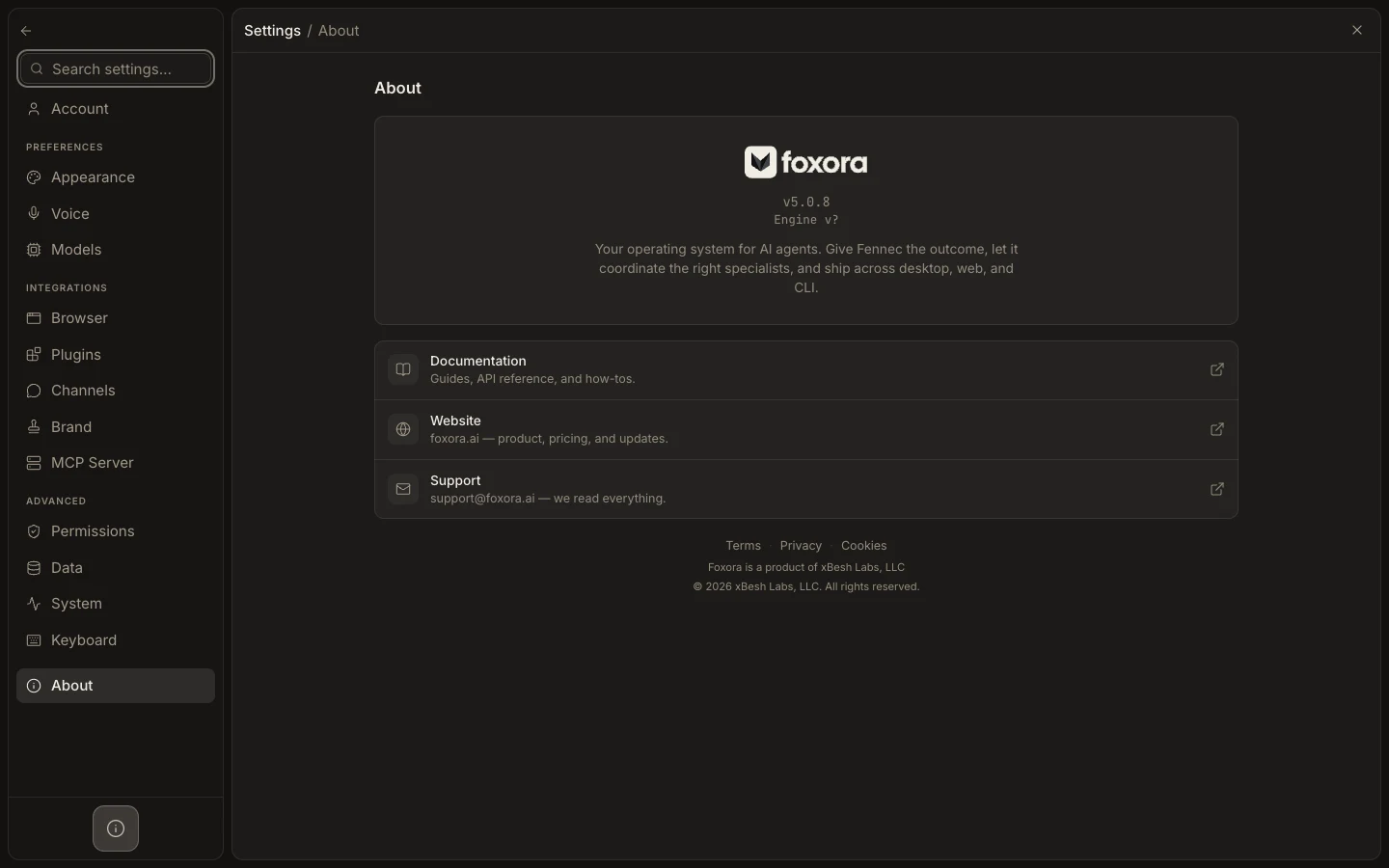
- Open Settings → About and select Check for Updates, or respond to the update notice shown at launch.
- Download the offered update and choose the install or relaunch action.
- After restart, return to Settings → About and confirm the new app version.
Expected result
Foxora restarts on the current build while your tasks, project links, and local folders remain available.
Note: Finish or safely stop critical work before relaunching; an application restart can interrupt active processes.