
Troubleshooting cloud workspaces
Most cloud workspace failures can be narrowed to sign-in, provisioning, the selected root, terminal reconnection, or a task-specific error.
On this page2
Steps
- Confirm you are signed in and reload the affected task once.
- Open Files and verify the expected project or private workspace root is selected.
- Reopen Terminal and check whether its existing tab reconnects before creating another shell.
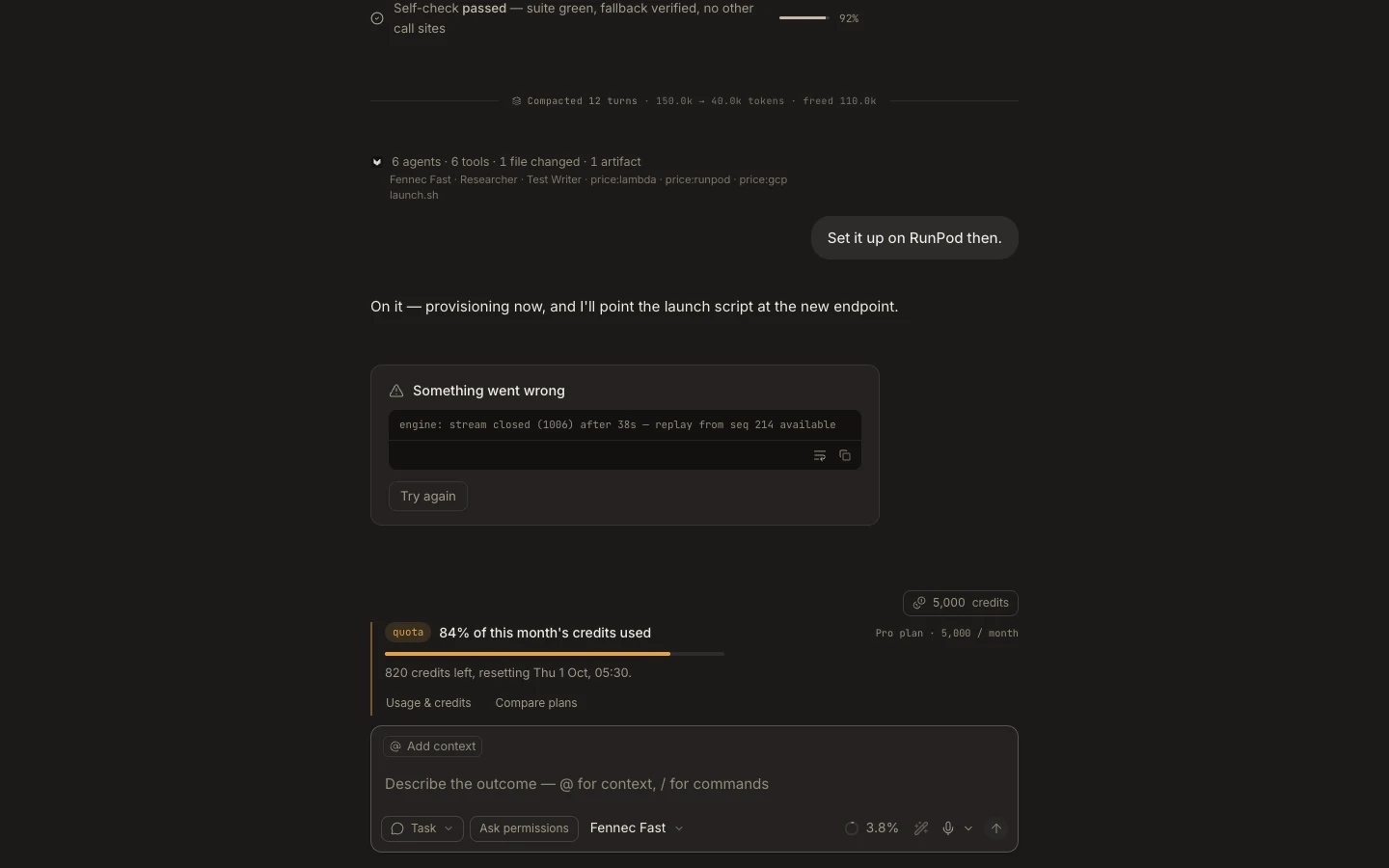
- Read the exact transcript error, retry only the failed operation, and preserve any downloadable output.
Expected result
You either restore the correct workspace connection or have a specific error and task ID for support.
Note: Do not recreate, delete, or reclone a workspace until important uncommitted files have been downloaded or otherwise backed up.