
Install and connect a plugin
The plugin catalog supports browser-based OAuth apps and credential-based connectors. Use the app’s own detail screen rather than pasting secrets into a task.
On this page2
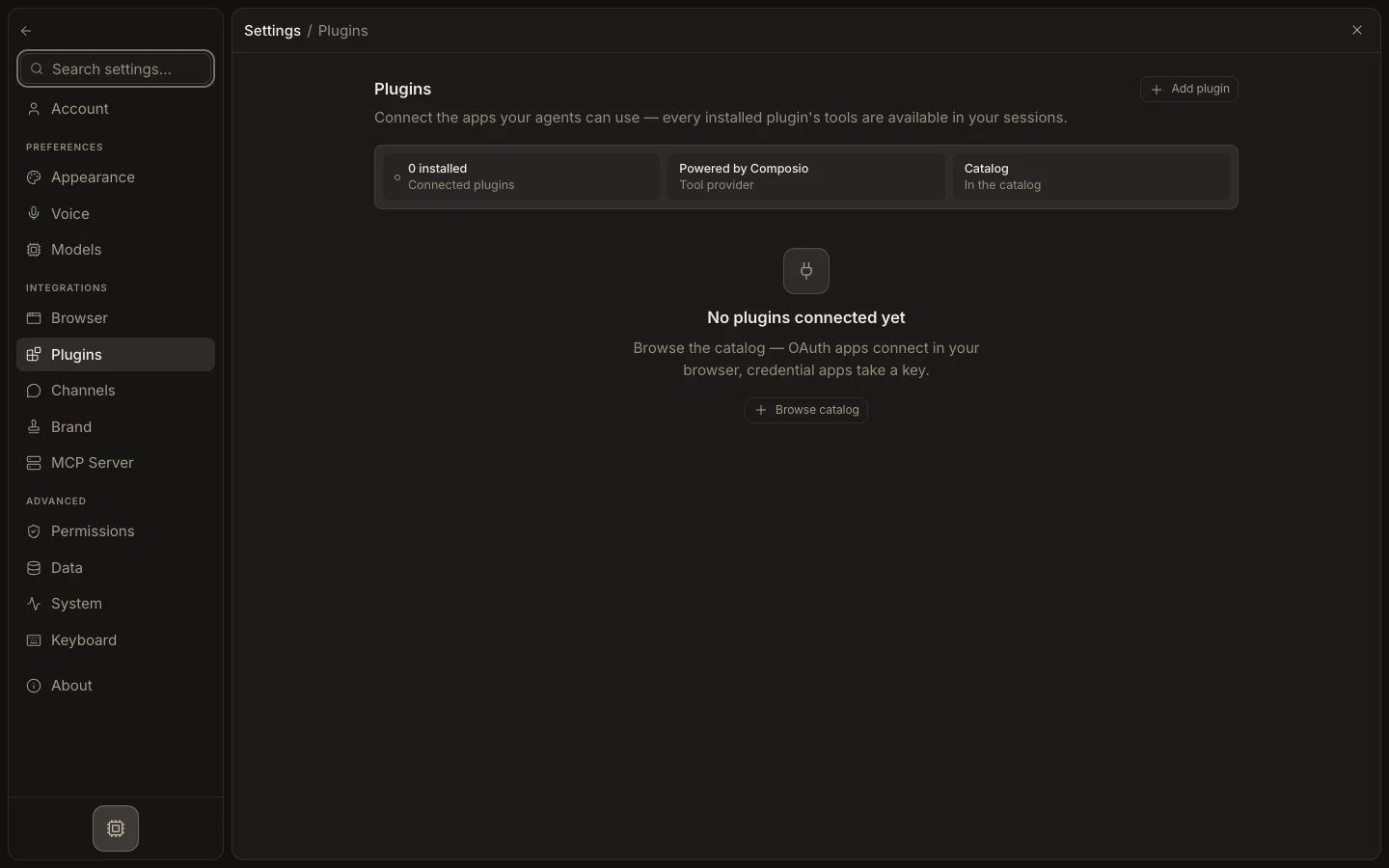
Connect an app
- Open
Settings→Pluginsand selectAdd plugin. - Search the catalog, choose the exact app, and review its description and available tools.
- Select
Connect. - Complete the provider’s OAuth screen, or enter only the credential fields requested by Studio.
- Return to the plugin detail page and confirm the account is listed under
Connected accounts.
Expected result
The connected account has an active status and a small read-only test succeeds. If authorization is canceled or expires, Studio should show an error or non-active account rather than claiming the app is ready.