
Understanding Stage panels
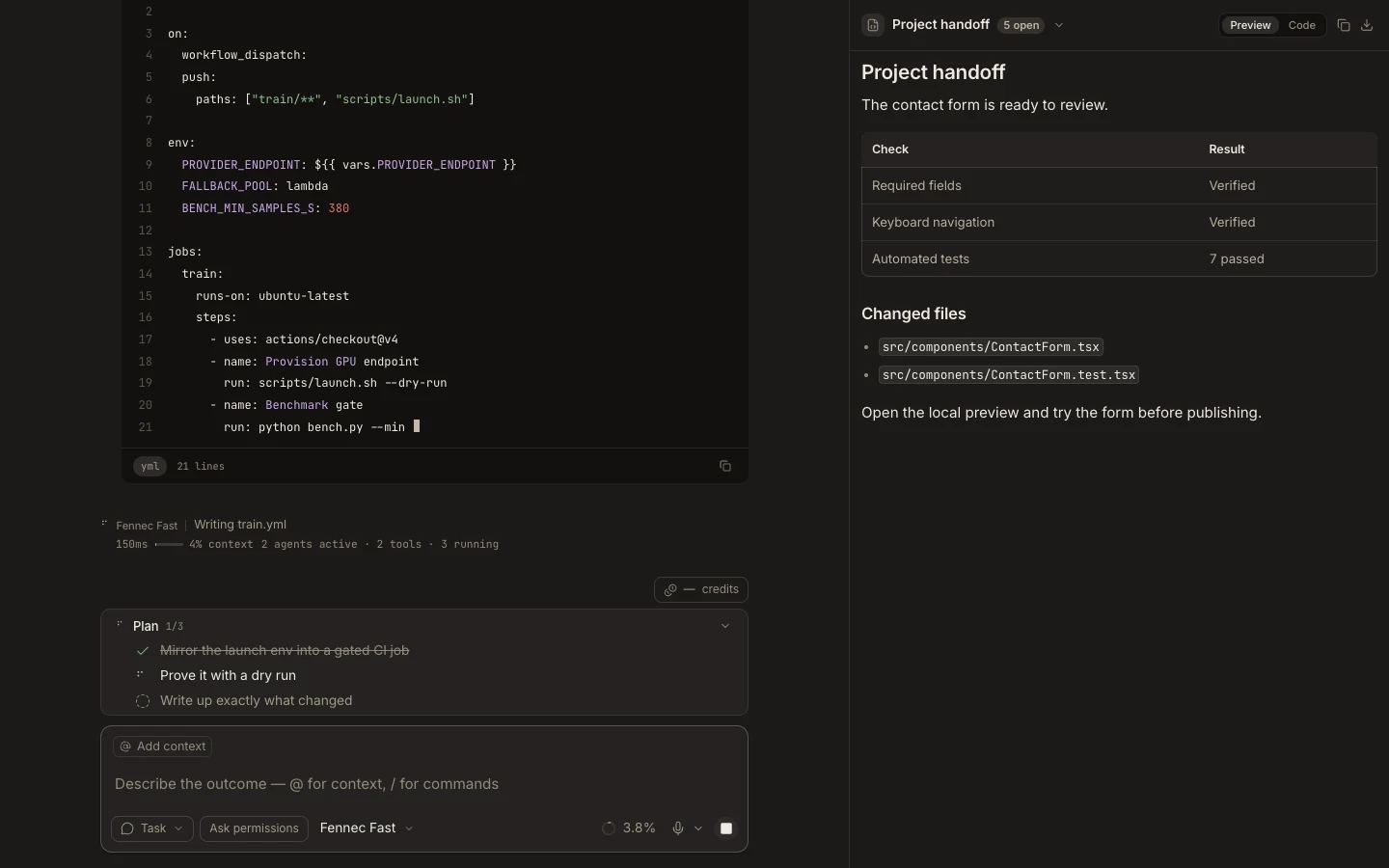
A Stage panel has a surface switcher, navigation controls, view actions, and an optional expanded layout tailored to its content.
On this page2
Steps
- Read the Stage title to confirm which surface is active.
- Use the title menu to switch surfaces and note any unseen-item count.
- Use Back to return to the previous focus, or expand Stage for detailed work.
- For renderable content, switch between Preview and Code and use only the actions shown.
Expected result
You always know which task surface is active and how its output can be inspected or saved.
Note: Closing a surface removes that panel, not the underlying project file or task transcript.